
 Downloads provided by UsageCounts
TensorFlow Object Detection API Tutorial Train Multiple Objects Windows-10
Edje Electronics;
TensorFlow Object Detection API Tutorial Train Multiple Objects Windows-10
Cloned From https://github.com/EdjeElectronics/TensorFlow-Object-Detection-API-Tutorial-Train-Multiple-Objects-Windows-10 # How To Train an Object Detection Classifier for Multiple Objects Using TensorFlow (GPU) on Windows 10 ## Brief Summary *Last updated: 6/22/2019 with TensorFlow v1.13.1* This repository is a tutorial for how to use TensorFlow's Object Detection API to train an object detection classifier for multiple objects on Windows 10, 8, or 7. (It will also work on Linux-based OSes with some minor changes.) It was originally written using TensorFlow version 1.5, but will also work for newer versions of TensorFlow. Translated versions of this guide are listed below. If you would like to contribute a translation in another language, please feel free! You can add it as a pull request and I will merge it when I get the chance. * [Korean translation](https://github.com/EdjeElectronics/TensorFlow-Object-Detection-API-Tutorial-Train-Multiple-Objects-Windows-10/blob/master/translate/README_Korean.md) (thanks @cocopambag!) * [Chinese translation](https://github.com/EdjeElectronics/TensorFlow-Object-Detection-API-Tutorial-Train-Multiple-Objects-Windows-10/blob/master/translate/README_Chinese.md) (thanks @Marco-Ray!) * [Vietnamese translation](https://github.com/EdjeElectronics/TensorFlow-Object-Detection-API-Tutorial-Train-Multiple-Objects-Windows-10/blob/master/translate/README_Vietnamese.md) (thanks @winter2897!) I also made a YouTube video that walks through this tutorial. Any discrepancies between the video and this written tutorial are due to updates required for using newer versions of TensorFlow. **If there are differences between this written tutorial and the video, follow the written tutorial!** [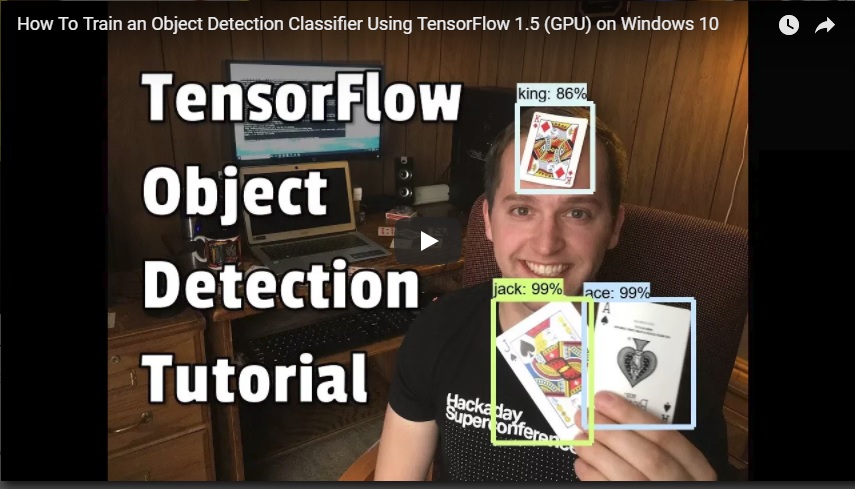](https://www.youtube.com/watch?v=Rgpfk6eYxJA) This readme describes every step required to get going with your own object detection classifier: 1. [Installing Anaconda, CUDA, and cuDNN](https://github.com/EdjeElectronics/TensorFlow-Object-Detection-API-Tutorial-Train-Multiple-Objects-Windows-10#1-install-anaconda-cuda-and-cudnn) 2. [Setting up the Object Detection directory structure and Anaconda Virtual Environment](https://github.com/EdjeElectronics/TensorFlow-Object-Detection-API-Tutorial-Train-Multiple-Objects-Windows-10#2-set-up-tensorflow-directory-and-anaconda-virtual-environment) 3. [Gathering and labeling pictures](https://github.com/EdjeElectronics/TensorFlow-Object-Detection-API-Tutorial-Train-Multiple-Objects-Windows-10#3-gather-and-label-pictures) 4. [Generating training data](https://github.com/EdjeElectronics/TensorFlow-Object-Detection-API-Tutorial-Train-Multiple-Objects-Windows-10#4-generate-training-data) 5. [Creating a label map and configuring training](https://github.com/EdjeElectronics/TensorFlow-Object-Detection-API-Tutorial-Train-Multiple-Objects-Windows-10#5-create-label-map-and-configure-training) 6. [Training](https://github.com/EdjeElectronics/TensorFlow-Object-Detection-API-Tutorial-Train-Multiple-Objects-Windows-10#6-run-the-training) 7. [Exporting the inference graph](https://github.com/EdjeElectronics/TensorFlow-Object-Detection-API-Tutorial-Train-Multiple-Objects-Windows-10#7-export-inference-graph) 8. [Testing and using your newly trained object detection classifier](https://github.com/EdjeElectronics/TensorFlow-Object-Detection-API-Tutorial-Train-Multiple-Objects-Windows-10#8-use-your-newly-trained-object-detection-classifier) [Appendix: Common Errors](https://github.com/EdjeElectronics/TensorFlow-Object-Detection-API-Tutorial-Train-Multiple-Objects-Windows-10#appendix-common-errors) The repository provides all the files needed to train a "Pinochle Deck" playing card detector that can accurately detect nines, tens, jacks, queens, kings, and aces. The tutorial describes how to replace these files with your own files to train a detection classifier for whatever your heart desires. It also has Python scripts to test your classifier out on an image, video, or webcam feed. <p align="center"> <img src="doc/detector1.jpg"> </p> ## Introduction The purpose of this tutorial is to explain how to train your own convolutional neural network object detection classifier for multiple objects, starting from scratch. At the end of this tutorial, you will have a program that can identify and draw boxes around specific objects in pictures, videos, or in a webcam feed. There are several good tutorials available for how to use TensorFlow’s Object Detection API to train a classifier for a single object. However, these usually assume you are using a Linux operating system. If you’re like me, you might be a little hesitant to install Linux on your high-powered gaming PC that has the sweet graphics card you’re using to train a classifier. The Object Detection API seems to have been developed on a Linux-based OS. To set up TensorFlow to train a model on Windows, there are several workarounds that need to be used in place of commands that would work fine on Linux. Also, this tutorial provides instructions for training a classifier that can detect multiple objects, not just one. The tutorial is written for Windows 10, and it will also work for Windows 7 and 8. The general procedure can also be used for Linux operating systems, but file paths and package installation commands will need to change accordingly. I used TensorFlow-GPU v1.5 while writing the initial version of this tutorial, but it will likely work for future versions of TensorFlow. TensorFlow-GPU allows your PC to use the video card to provide extra processing power while training, so it will be used for this tutorial. In my experience, using TensorFlow-GPU instead of regular TensorFlow reduces training time by a factor of about 8 (3 hours to train instead of 24 hours). The CPU-only version of TensorFlow can also be used for this tutorial, but it will take longer. If you use CPU-only TensorFlow, you do not need to install CUDA and cuDNN in Step 1. ## Steps ### 1. Install Anaconda, CUDA, and cuDNN Anaconda is a software toolkit that creates virtual Python environments so you can install and use Python libraries without worrying about creating version conflicts with existing installations. Anaconda works well on Windows, and enables you to use many Python libraries that normally would only work on a Linux system. It provides a simple method for installing TensorFlow (which we'll do in Step 2d). It also automatically installs the CUDA and cuDNN versions you need for using TensorFlow on a GPU. Download Anaconda for Windows from [their webpage](https://www.anaconda.com/products/individual) (you have to scroll down a ways to get to the download links). Once it's downloaded, execute the installer file and work through the installation steps. If you are using a version of TensorFlow older than TF v1.13, make sure you use the CUDA and cuDNN versions that are compatible with the TensorFlow version you are using. [Here](https://www.tensorflow.org/install/source#tested_build_configurations) is a table showing which version of TensorFlow requires which versions of CUDA and cuDNN. Anaconda will automatically install the correct version of CUDA and cuDNN for the version of TensorFlow you are using, so you shouldn't have to worry about this. ### 2. Set up TensorFlow Directory and Anaconda Virtual Environment The TensorFlow Object Detection API requires using the specific directory structure provided in its GitHub repository. It also requires several additional Python packages, specific additions to the PATH and PYTHONPATH variables, and a few extra setup commands to get everything set up to run or train an object detection model. This portion of the tutorial goes over the full set up required. It is fairly meticulous, but follow the instructions closely, because improper setup can cause unwieldy errors down the road. #### 2a. Download TensorFlow Object Detection API repository from GitHub Create a folder directly in C: and name it “tensorflow1”. This working directory will contain the full TensorFlow object detection framework, as well as your training images, training data, trained classifier, configuration files, and everything else needed for the object detection classifier. Download the full TensorFlow object detection repository located at https://github.com/tensorflow/models by clicking the “Clone or Download” button and downloading the zip file. Open the downloaded zip file and extract the “models-master” folder directly into the C:\tensorflow1 directory you just created. Rename “models-master” to just “models”. **Note: The TensorFlow models repository's code (which contains the object detection API) is continuously updated by the developers. Sometimes they make changes that break functionality with old versions of TensorFlow. It is always best to use the latest version of TensorFlow and download the latest models repository. If you are not using the latest version, clone or download the commit for the version you are using as listed in the table below.** If you are using an older version of TensorFlow, here is a table showing which GitHub commit of the repository you should use. I generated this by going to the release branches for the models repository and getting the commit before the last commit for the branch. (They remove the research folder as the last commit before they create the official version release.) | TensorFlow version | GitHub Models Repository Commit | |--------------------|---------------------------------| |TF v1.7 |https://github.com/tensorflow/models/tree/adfd5a3aca41638aa9fb297c5095f33d64446d8f | |TF v1.8 |https://github.com/tensorflow/models/tree/abd504235f3c2eed891571d62f0a424e54a2dabc | |TF v1.9 |https://github.com/tensorflow/models/tree/d530ac540b0103caa194b4824af353f1b073553b | |TF v1.10 |https://github.com/tensorflow/models/tree/b07b494e3514553633b132178b4c448f994d59df | |TF v1.11 |https://github.com/tensorflow/models/tree/23b5b4227dfa1b23d7c21f0dfaf0951b16671f43 | |TF v1.12 |https://github.com/tensorflow/models/tree/r1.12.0 | |TF v1.13 |https://github.com/tensorflow/models/tree/r1.13.0 | |Latest version |https://github.com/tensorflow/models | This tutorial was originally done using TensorFlow v1.5 and this [GitHub commit](https://github.com/tensorflow/models/tree/079d67d9a0b3407e8d074a200780f3835413ef99) of the TensorFlow Object Detection API. If portions of this tutorial do not work, it may be necessary to install TensorFlow v1.5 and use this exact commit rather than the most up-to-date version. #### 2b. Download the Faster-RCNN-Inception-V2-COCO model from TensorFlow's model TensorFlow provides several object detection models (pre-trained classifiers with specific neural network architectures) in its [model zoo](https://github.com/tensorflow/models/blob/master/research/object_detection/g3doc/tf1_detection_zoo.md). Some models (such as the SSD-MobileNet model) have an architecture that allows for faster detection but with less accuracy, while some models (such as the Faster-RCNN model) give slower detection but with more accuracy. I initially started with the SSD-MobileNet-V1 model, but it didn’t do a very good job identifying the cards in my images. I re-trained my detector on the Faster-RCNN-Inception-V2 model, and the detection worked considerably better, but with a noticeably slower speed. <p align="center"> <img src="doc/rcnn_vs_ssd.jpg"> </p> You can choose which model to train your objection detection classifier on. If you are planning on using the object detector on a device with low computational power (such as a smart phone or Raspberry Pi), use the SDD-MobileNet model. If you will be running your detector on a decently powered laptop or desktop PC, use one of the RCNN models. This tutorial will use the Faster-RCNN-Inception-V2 model. [Download the model here.](http://download.tensorflow.org/models/object_detection/faster_rcnn_inception_v2_coco_2018_01_28.tar.gz) Open the downloaded faster_rcnn_inception_v2_coco_2018_01_28.tar.gz file with a file archiver such as WinZip or 7-Zip and extract the faster_rcnn_inception_v2_coco_2018_01_28 folder to the C:\tensorflow1\models\research\object_detection folder. (Note: The model date and version will likely change in the future, but it should still work with this tutorial.) #### 2c. Download this tutorial's repository from GitHub Download the full repository located on this page (scroll to the top and click Clone or Download) and extract all the contents directly into the C:\tensorflow1\models\research\object_detection directory. (You can overwrite the existing "README.md" file.) This establishes a specific directory structure that will be used for the rest of the tutorial. At this point, here is what your \object_detection folder should look like: <p align="center"> <img src="doc/object_detection_directory.jpg"> </p> This repository contains the images, annotation data, .csv files, and TFRecords needed to train a "Pinochle Deck" playing card detector. You can use these images and data to practice making your own Pinochle Card Detector. It also contains Python scripts that are used to generate the training data. It has scripts to test out the object detection classifier on images, videos, or a webcam feed. You can ignore the \doc folder and its files; they are just there to hold the images used for this readme. If you want to practice training your own "Pinochle Deck" card detector, you can leave all the files as they are. You can follow along with this tutorial to see how each of the files were generated, and then run the training. You will still need to generate the TFRecord files (train.record and test.record) as described in Step 4. You can also download the frozen inference graph for my trained Pinochle Deck card detector [from this Dropbox link](https://www.dropbox.com/s/va9ob6wcucusse1/inference_graph.zip?dl=0) and extract the contents to \object_detection\inference_graph. This inference graph will work "out of the box". You can test it after all the setup instructions in Step 2a - 2f have been completed by running the Object_detection_image.py (or video or webcam) script. If you want to train your own object detector, delete the following files (do not delete the folders): - All files in \object_detection\images\train and \object_detection\images\test - The “test_labels.csv” and “train_labels.csv” files in \object_detection\images - All files in \object_detection\training - All files in \object_detection\inference_graph Now, you are ready to start from scratch in training your own object detector. This tutorial will assume that all the files listed above were deleted, and will go on to explain how to generate the files for your own training dataset. #### 2d. Set up new Anaconda virtual environment Next, we'll work on setting up a virtual environment in Anaconda for tensorflow-gpu. From the Start menu in Windows, search for the Anaconda Prompt utility, right click on it, and click “Run as Administrator”. If Windows asks you if you would like to allow it to make changes to your computer, click Yes. In the command terminal that pops up, create a new virtual environment called “tensorflow1” by issuing the following command: ``` C:\> conda create -n tensorflow1 pip python=3.5 ``` Then, activate the environment and update pip by issuing: ``` C:\> activate tensorflow1 (tensorflow1) C:\>python -m pip install --upgrade pip ``` Install tensorflow-gpu in this environment by issuing: ``` (tensorflow1) C:\> pip install --ignore-installed --upgrade tensorflow-gpu ``` Since we're using Anaconda, installing tensorflow-gpu will also automatically download and install the correct versions of CUDA and cuDNN. (Note: You can also use the CPU-only version of TensorFow, but it will run much slower. If you want to use the CPU-only version, just use "tensorflow" instead of "tensorflow-gpu" in the previous command.) Install the other necessary packages by issuing the following commands: ``` (tensorflow1) C:\> conda install -c anaconda protobuf (tensorflow1) C:\> pip install pillow (tensorflow1) C:\> pip install lxml (tensorflow1) C:\> pip install Cython (tensorflow1) C:\> pip install contextlib2 (tensorflow1) C:\> pip install jupyter (tensorflow1) C:\> pip install matplotlib (tensorflow1) C:\> pip install pandas (tensorflow1) C:\> pip install opencv-python ``` (Note: The ‘pandas’ and ‘opencv-python’ packages are not needed by TensorFlow, but they are used in the Python scripts to generate TFRecords and to work with images, videos, and webcam feeds.) #### 2e. Configure PYTHONPATH environment variable A PYTHONPATH variable must be created that points to the \models, \models\research, and \models\research\slim directories. Do this by issuing the following commands (from any directory): ``` (tensorflow1) C:\> set PYTHONPATH=C:\tensorflow1\models;C:\tensorflow1\models\research;C:\tensorflow1\models\research\slim ``` (Note: Every time the "tensorflow1" virtual environment is exited, the PYTHONPATH variable is reset and needs to be set up again. You can use "echo %PYTHONPATH% to see if it has been set or not.) #### 2f. Compile Protobufs and run setup.py Next, compile the Protobuf files, which are used by TensorFlow to configure model and training parameters. Unfortunately, the short protoc compilation command posted on TensorFlow’s Object Detection API [installation page](https://github.com/tensorflow/models/blob/master/research/object_detection/g3doc/installation.md) does not work on Windows. Every .proto file in the \object_detection\protos directory must be called out individually by the command. In the Anaconda Command Prompt, change directories to the \models\research directory: ``` (tensorflow1) C:\> cd C:\tensorflow1\models\research ``` Then copy and paste the following command into the command line and press Enter: ``` protoc --python_out=. .\object_detection\protos\anchor_generator.proto .\object_detection\protos\argmax_matcher.proto .\object_detection\protos\bipartite_matcher.proto .\object_detection\protos\box_coder.proto .\object_detection\protos\box_predictor.proto .\object_detection\protos\eval.proto .\object_detection\protos\faster_rcnn.proto .\object_detection\protos\faster_rcnn_box_coder.proto .\object_detection\protos\grid_anchor_generator.proto .\object_detection\protos\hyperparams.proto .\object_detection\protos\image_resizer.proto .\object_detection\protos\input_reader.proto .\object_detection\protos\losses.proto .\object_detection\protos\matcher.proto .\object_detection\protos\mean_stddev_box_coder.proto .\object_detection\protos\model.proto .\object_detection\protos\optimizer.proto .\object_detection\protos\pipeline.proto .\object_detection\protos\post_processing.proto .\object_detection\protos\preprocessor.proto .\object_detection\protos\region_similarity_calculator.proto .\object_detection\protos\square_box_coder.proto .\object_detection\protos\ssd.proto .\object_detection\protos\ssd_anchor_generator.proto .\object_detection\protos\string_int_label_map.proto .\object_detection\protos\train.proto .\object_detection\protos\keypoint_box_coder.proto .\object_detection\protos\multiscale_anchor_generator.proto .\object_detection\protos\graph_rewriter.proto .\object_detection\protos\calibration.proto .\object_detection\protos\flexible_grid_anchor_generator.proto ``` This creates a name_pb2.py file from every name.proto file in the \obje
https://github.com/EdjeElectronics/TensorFlow-Object-Detection-API-Tutorial-Train-Multiple-Objects-Windows-10
selected citations These citations are derived from selected sources.This is an alternative to the "Influence" indicator, which also reflects the overall/total impact of an article in the research community at large, based on the underlying citation network (diachronically).0 popularity This indicator reflects the "current" impact/attention (the "hype") of an article in the research community at large, based on the underlying citation network.Average influence This indicator reflects the overall/total impact of an article in the research community at large, based on the underlying citation network (diachronically).Average impulse This indicator reflects the initial momentum of an article directly after its publication, based on the underlying citation network.Average views 37 downloads 2 - 37views2downloads

selected citations Citations provided by BIP!
These citations are derived from selected sources.
This is an alternative to the "Influence" indicator, which also reflects the overall/total impact of an article in the research community at large, based on the underlying citation network (diachronically).
Citations provided by BIP!popularityPopularity provided by BIP!
This indicator reflects the "current" impact/attention (the "hype") of an article in the research community at large, based on the underlying citation network.
Popularity provided by BIP!influenceInfluence provided by BIP!
This indicator reflects the overall/total impact of an article in the research community at large, based on the underlying citation network (diachronically).
Influence provided by BIP!impulseImpulse provided by BIP!
This indicator reflects the initial momentum of an article directly after its publication, based on the underlying citation network.
Impulse provided by BIP!viewsViews provided by UsageCounts
Views provided by UsageCountsdownloadsDownloads provided by UsageCounts
Downloads provided by UsageCounts 0
Average
Average
Average
37
2